The Galigeo Portal
Supported Clients
| Item | Recommended | Notices | Check Tests |
|---|---|---|---|
| OS | Windows 10, 11 Desktop | N/A | N/A |
| HTML5 Client Web browser | Microsoft: Edge Chromium 134, 135 | Javascript activated | Go to web browser Menu > About to know its version |
| FireFox 136, 137 | IE 11 mode in Edge Chromium is not supported | ||
| Chrome 134, 135 | |||
| Excel | 2016, 2019 | For Excel Georeports | N/A |
Sizing the client machine: We recommend to use Windows 10 with 4 to 8 Gb of RAM
Accessing the Application Galigeo
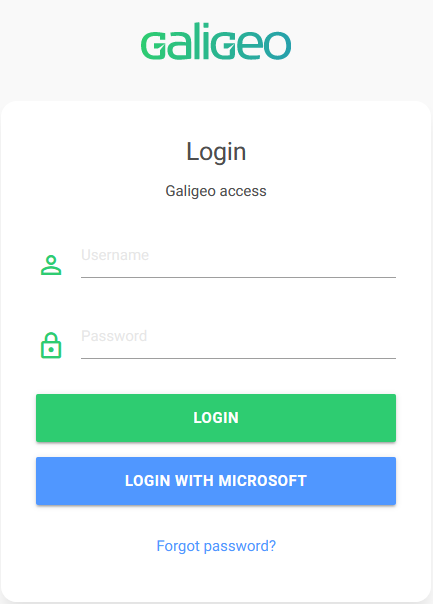
Launch the access link to the application (URL) supplied by your administrator in order to see the following logon window opening.
New Menu
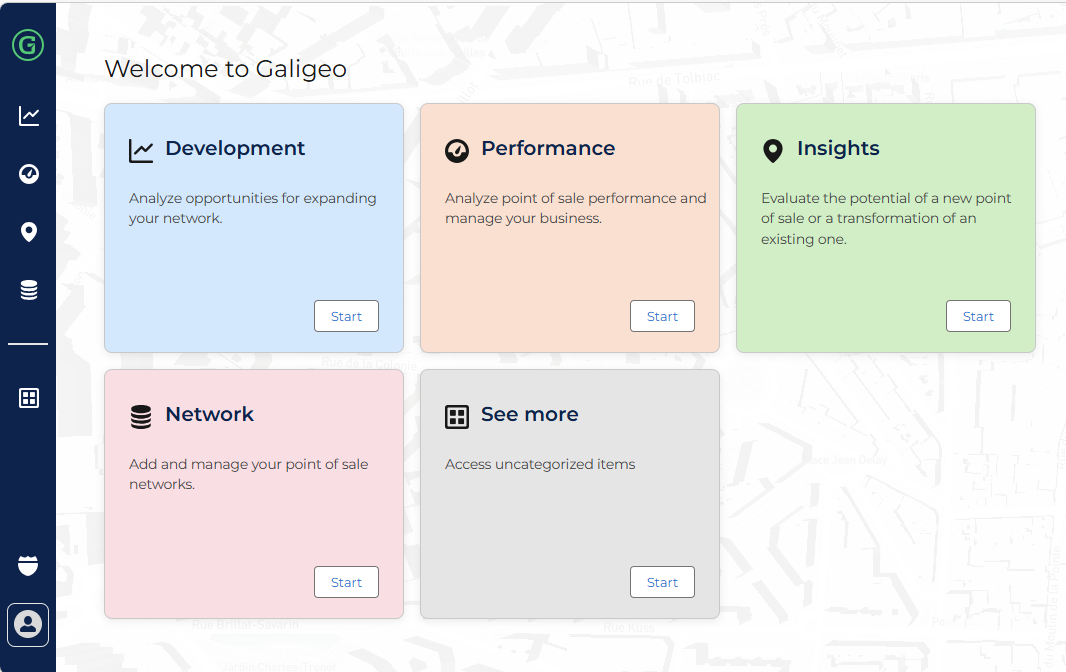
Since the G26 Cloud version, a new menu is available. It organizes content and modules through business categories (Development, Performance, Insights, Network, etc.).
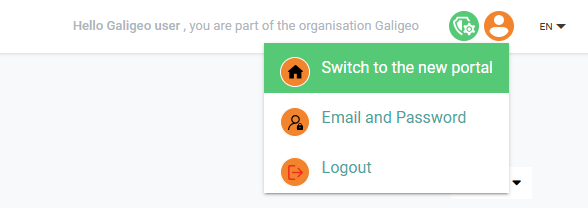
To activate it, click on your profile icon in the top right corner of the screen, then select Switch to the new portal.
The new menu is then displayed with the available business categories:
Accessing the Portal
If you have the correct credentials, you will access a search and discovery portal that shows the maps in the form of thumbnails like in the following example:
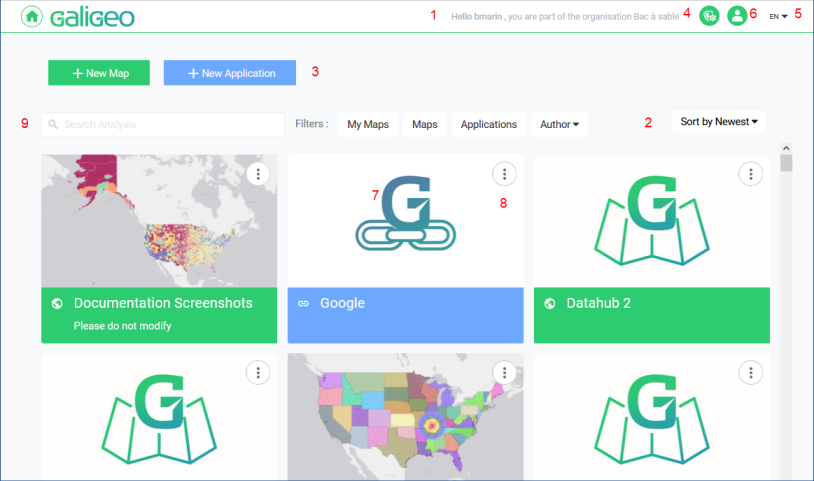
The portal offers the following functionalities:
- Organization name (if there is one)
- Maps filtering by "Recently Opened, My Maps, Applications, All"
- Add a new map
- Access the Administration (thus the catalog)
- Change the display language
- Profile: Change password and/or e-mail, or Disconnect
- Open map (click on the thumbnail)
- Operations on the map
- Search a map
Search Field
The search engine allows to search and filter applications by name, keywords (included in the description) or by author.
Filter Maps
Allows filtering the documents in My maps, maps, applications, author and all maps/apps sorted by newest, oldest, alphabetically A-Z or Z-A.
Open a Map
By clicking on a widget, the display of the map/application will be triggered.
Add a Map or Application
The adding of a new element is done by clicking on the + New Map or + New Application buttons:

Only the users that have the right "Create new map" have access to this functionality. The adding of a map requires the entering of its name and the selection of a template. By default the empty one is selected:
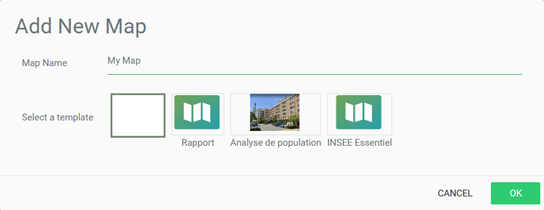
The adding of an application requires the entering of its name and URL.
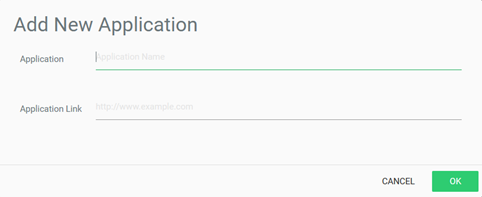
https://SERVER/Galigeo/feature/security/token?token=<GGO_TOKEN>
Setup a Map or Application
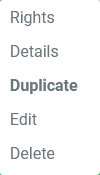
By clicking on the settings button will trigger the display of the following screen that allows the access to Rights Management, the changing of the settings, the duplicating, the changing of the name and other parameters, and the deleting of the map.
Change the Display Language
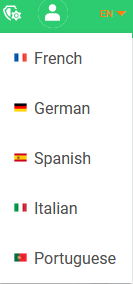
This button displays the page that changes the favorite display language: French, English, Spanish, German, Italian, and Portuguese.
Logout Button
The Logout button is available by clicking on the Profile button and then on Logout.
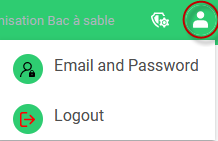
Clicking on it one can logout from the Portal and return to the login screen.