Appendix
Advanced Parameters
The file $GALIGEO_HOME/config/gaia.properties allows the modifying of several advanced parameters of the application. In most cases it is not necessary to modify this file.
To be able to modify a properties file means being familiar with the proper syntax of this format. The file contains a list of key values separated by CR. A syntax error in the gaia.properties file can be fatal for the functioning of the application.
Here is the parameters list and their meaning:
| Parameter | Description |
|---|---|
| SQLmaxRecordCount | Limits the number of records for the SQL queries. |
| WFSmaxRecordCount | Limits the number of records for a WMS service. |
| xls_max_size and xlsx_max_size | Limits the number of records to load an Excel file. |
| csv_max_size | Limits the number of records to load a CSV file. |
| exportMaxRecordCount | Limits the number of records for an export. |
| unique_values_max_count | Maximum number of unique values. |
| arcgis_pagination_supported | Indicates if the pagination is supported for the ArcGIS servers. |
| default_query_values_limit | Maximum number of entities taken into consideration for the classification. |
| default_filters_values_limit | Max size of the data sample used to get the different filter values (default: 10000). If filter values do not appear, it is possible that this parameter needs to be increased. |
| zoom_default_simplification | Simplification setting (unit in degrees) used to improve the performance of zooming on lines and polygons. The higher the value, the more efficient the zoom. On the other hand, a value that is too high may not work on objects that are too small. |
| zoom_max_record_count | Maximum number of objects taken into account to zoom on a piece of data. The smaller the value, the more efficient the zoom but becomes less precise. |
| master_datasource | Indicates the name of the data source used by the TM and the Galigeo catalog. If this parameter is not defined, then the catalog works with local shp files and the TM uses a local database. |
| catalog-max-size-mb | Maximum size of a file that can be imported into the catalog. |
| openroute_key | Specifies a key to use the OpenRouteService service. When a key is present, the OpenRoute option becomes available in the isochrones configuration page. |
| tm_generalization | Simplification tolerance (in degrees) applied to territory geometries when aggregating them in the Territory Manager. Also used as the snap-rounding grid step by the SnapRound union algorithm to align quasi-coincident boundaries of neighboring units. The higher the value, the more the contours of aggregated territories are simplified, which improves performance but decreases geometric precision. Default: 0.002. |
| tm_clean_hole_ratio | Multiplier applied to tm_generalization to determine the maximum size of holes removed from aggregated polygons in the Territory Manager. The threshold size of a cleaned hole equals tm_generalization × tm_clean_hole_ratio. The higher the value, the more small residual holes left after aggregation are removed. Default: 20. |
| tm_union_algo | Algorithm used to merge unit geometries when aggregating a territory. Accepted values: SnapRound (default) applies a precision reduction onto a grid of step tm_generalization followed by a robust OverlayNG union, which eliminates small gaps ("slivers") between neighboring polygons at the source; UnaryUnionOp uses the classic JTS union (previous default behavior); CascadedPolygonUnion uses the JTS cascaded polygon union, sometimes faster on large volumes; Buffer applies a morphological closing (buffer(+t).buffer(-t)) to close gaps without inflating the outer boundary. |
The modifications done to the file gaia.properties will be effective after restarting Tomcat.
Create an Editable InfoWindow
The customization of the infowindow offers several possibilities for someone that masters the base notions of CSS/HTML. In this appendix, we will see how to make a dataset editable using this functionality.
Prerequisites
In order that a dataset is editable, it has to satisfy at least one of the following conditions:
- It is a simple SQL query, Example:
select * from sites - It is an Excel file imported in a map
- It is a CSV file imported in a map
The user has to have the right "Define customized infowindows". The users with the profile Creator have this right by default.
Setting Up the Edit Form
- Open the settings page from the map, and then select "Customized InfoWindow".
- Activate the switch for the dataset we wish to make editable.
The tab HTML allows customizing the HTML content of the InfoWindow.
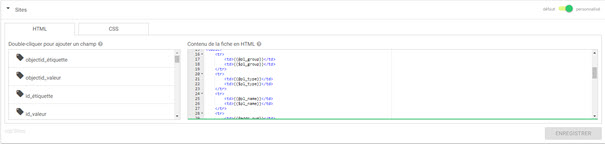
- Add a form where the ID is "edition-form":
<form id="edition-form" method='POST'></form> - Inside the form place the element of type "input". Example:
<input type="text" name="{{@name}}" value="{{$name}}" /> - Save the changes.
When we come back to the map and click on an object of the dataset, a switch appears at the top of the infowindow.
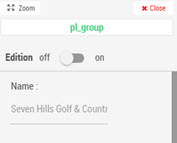
By activating this switch, the fields of the form become editable and a button Save allows the saving of the changes.
Creation of a New Point
The use of the "ggo_creator" HTML class indicates that it is also possible to use the edit form to create new points. When this is the case, a creation button appears below the legend:
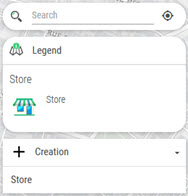
This button automatically opens the information sheet form in creation mode. The validation of the form adds the new point to the dataset (and therefore on the map).
Edition of Localization
Inside the form, add the element <div id="edition-xy"></div> that allows a control to appear in order to update the placement of punctual data.
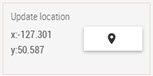
- The CSV/Excel files having a XY type of cartography
- The simple SQL queries (select ... from table) with one column geometry or a XY type cartography
Customize the Display in Edition
It is possible to activate/deactivate the visual elements like the status of the edition switch using the ggo-viewer and ggo-editor classes.
| Element | Description |
|---|---|
<div class="ggo-viewer"></div> |
The element is visible uniquely when the switch is off |
<div class="ggo-editor"></div> |
The element is visible when the switch is on |
<div class="ggo-creator"></div> |
The element is visible only in creation mode |
It is for instance possible to add the ggo-editor class to the form so that it is displaying only when the infowindow is in edition: <form class="ggo-editor" id="edition-form" method='POST'></form>
Example
To obtain for instance an edit form as in the figure below:
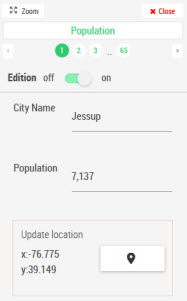
The code to enter is:
<form class="ggo-editor" id="edition-form">
    <div class="row">
        <div class="col s4">
            City Name
        </div>
        <div class="col s8">
            <input type="text" id="Name" name="Name" value="{{$Name}}">
        </div>
    </div>
    <div class="row">
        <div class="col s4">
            Population
        </div>
        <div class="col s8">
            <input type="text" name="Population" value="{{$Population}}">
        </div>
    </div>
    <div id="edition-xy"></div>
</form>
Where "Name" and "Population" are field names from the dataset that is the basis of the point layer.

Rights Management
Only the users having the right "modify the infowindow" have access to the switch that allows the fields to be editable. By default, the roles Creator and Territory Manager have this right.
Geo Links
This feature is used to feed a document with a geographic selection, and it is the last tab of the Data Editor.
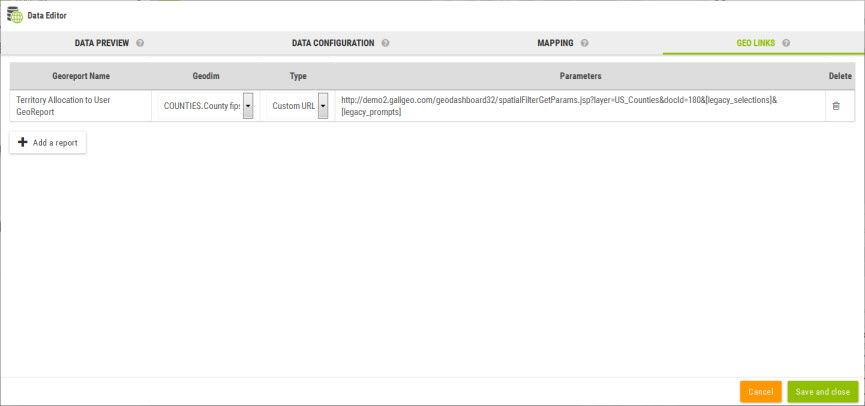
A set of reports can be attached to a dataset. These reports are available at two places:
- The infowindow when clicking on an object on the map. The report will then be executed for the selected object.
- In the selection tool for each selection having at least one report defined.
Two kinds of report can be attached to a dataset:
Custom URLs
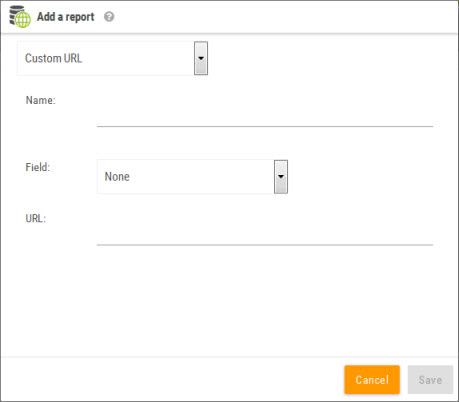
This kind of report allows to define a custom URL for the report. The URL must contain the tag [values] that will be substituted by the selected values.
GeoReports Definition
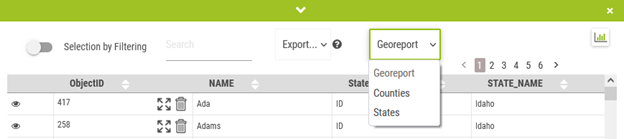
With Galigeo, it is possible to refresh an MS Excel report from a map objects selection in an interactive map. This type of report is called a georeport.
Access Methods to GeoReports
One can access georeports in two ways:
- Using the Info Window by clicking on an object on the map
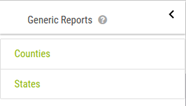
- Using the selection tool when a selection is active
Excel Reports
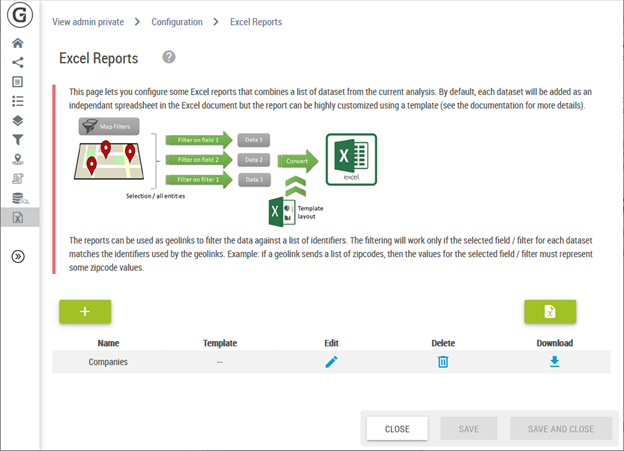
For more detail please see the Excel Reports Declaration chapter in the Configuration Page section.
Contact Galigeo Technical Support
If you have questions or if you encounter a problem with our products, we suggest that you contact your administrator.
If you are the administrator and confirm a problem with the software, please contact our support team.
Contact: [email protected]