Data Catalog
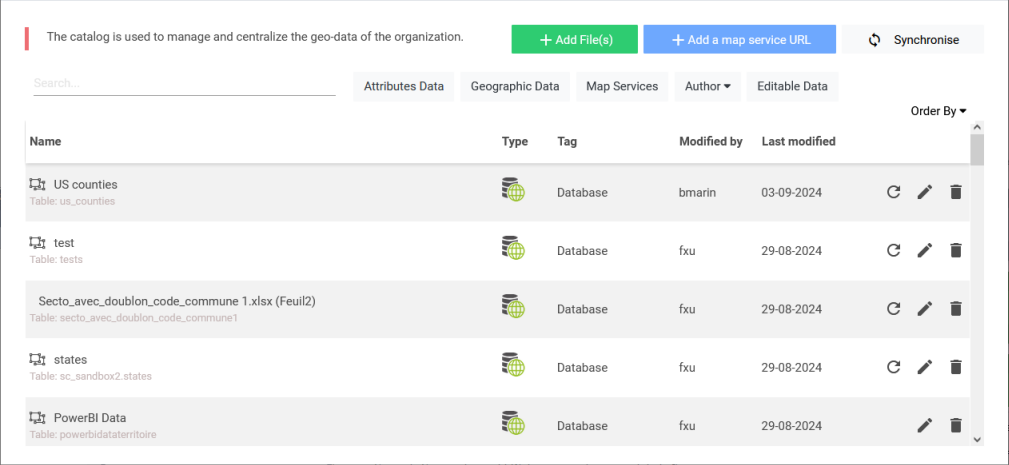
The catalog is used to manage the data available in all maps. It is here that the administrators and authors manage the geographical data present in the application. These geographical data can be directly represented on a map or they can serve to create a join with a non-geographical dataset.
Authorized users can directly add some new dataset to the catalog. Supported formats are either flat files (ESRI Shapefiles) or vector web services such as layers from Web Feature Server. See section "Adding Web Services to the Catalog" for more details.
By default, the application proposes a standard data catalog over several countries.
On Galigeo Cloud, the catalog features all the datasets available in the organization database (including the non-spatial data).

When clicking on the Edit button, the edit screen is opened:
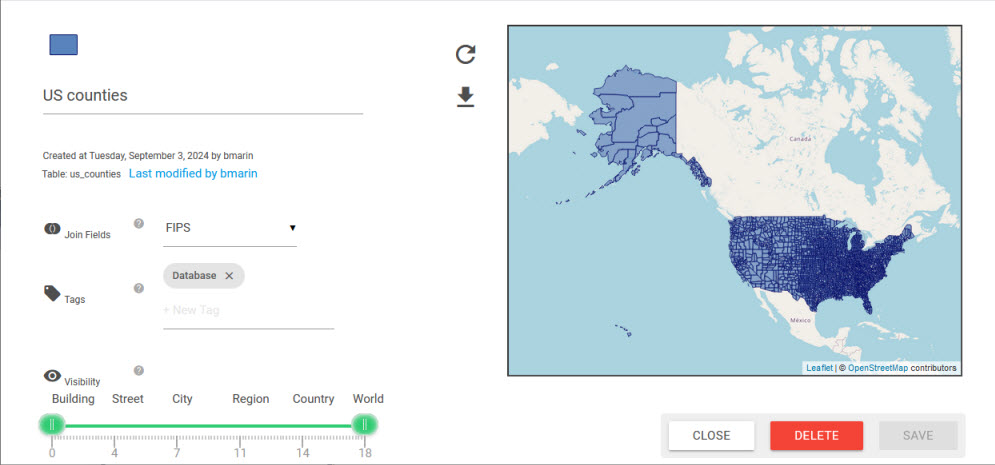
This screen offers some other functions to Edit the data (see the Data Edition section), download the shapefile in zip format, change the default symbology of the layer, choose Join Fields, add Tags, and set the visibility thresholds.
Data Edition
The following data can be updated from the catalog:
- Local shape files (except default shape files)
- Database tables marked as editable (Galigeo cloud only)
Only users with the role "catalog author" or "admin" are allowed to edit data.
The edition is done by loading a new file. You can use the "Download template" button to get a template file to process for the update.
The update can be either incremental (enabled only for database tables with a primary key) or by full replacement.
Customize the Default Symbology
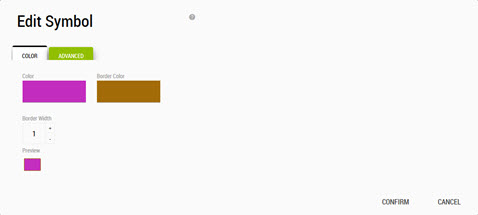
When choosing to change the colour you can click on the coloured rectangle, in case of polygon layers, or the coloured symbol, in case of points/lines layers. The Edit Symbol dialog will open.
For polygon layers:
For points/lines layers:
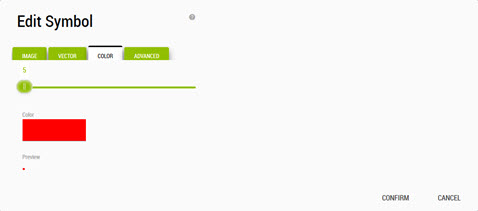
The latter one has more tabs to use:
- Vector: we can choose an SVG symbol to use instead of the default round symbol
- Image: we can choose an image to use
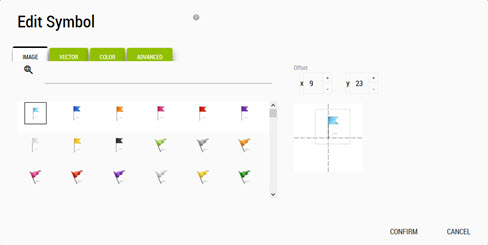
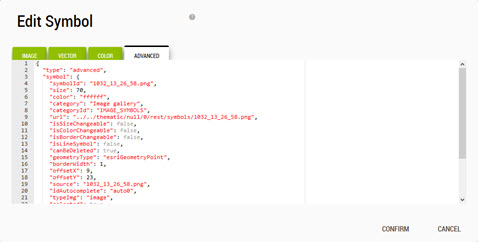
For both types of layers, polygon or points, there is the last Advanced tab reserved for the more savvy users. The advanced tab allows to modify some symbol properties by editing a JSON object and is used to handle layers using a more complex symbology (ex: stores with different logos). The JSON format is based on the ESRI DrawingInfo.
Adding Web Services to the Catalog
The catalog supports web services from two types of suppliers:
- ArcGIS Server
- OGC WFS (Web Feature Service)
In both cases, the web services are used as vector providers and can be used in Galigeo to create layers or even join with some attribute dataset.
To add a web service, click on "Add a map service URL" button from the bottom right corner:

ArcGIS Layers
ArcGIS Layers can be of type MapServer or FeatureServer. The query operation must be available.
Users can either specify a URL to a map service and pick up the layers from a list or directly specify a layer URL.
ArcGIS Secured Services
Galigeo can access secured ArcGIS services via an authentication token. This method allows you to authenticate to several types of services: ArcGIS Server, or ArcGIS Online.
The authentication steps are:
- Galigeo queries a URL in order to obtain a token
- The resulting token is passed for each REST call to the ArcGIS Server
The URLs for obtaining the tokens are called from the Galigeo server and not from the browser.
Basic Authentication
Some web services (typically GeoServer) require Basic Authentication (login/password) rather than token-based authentication. Galigeo supports this through service accounts that are configured per domain.
When a web service URL matches a configured domain, Galigeo automatically includes the credentials in every request to that server.
Service accounts for Basic Authentication can be managed from the Tokens & Authentication administration page, under the Basic Authentication tab.
WFS Layers
WFS Layers are added in the same manner as ArcGIS Layers. Users can specify various types of URL:
- A WFS server URL without parameter
- A GetCapabilities URL
- A GetFeature URL
In order to add a WFS service to Galigeo, the service must support:
- version 1.0.0
- Geojson as output format
- No authentication required