Administration
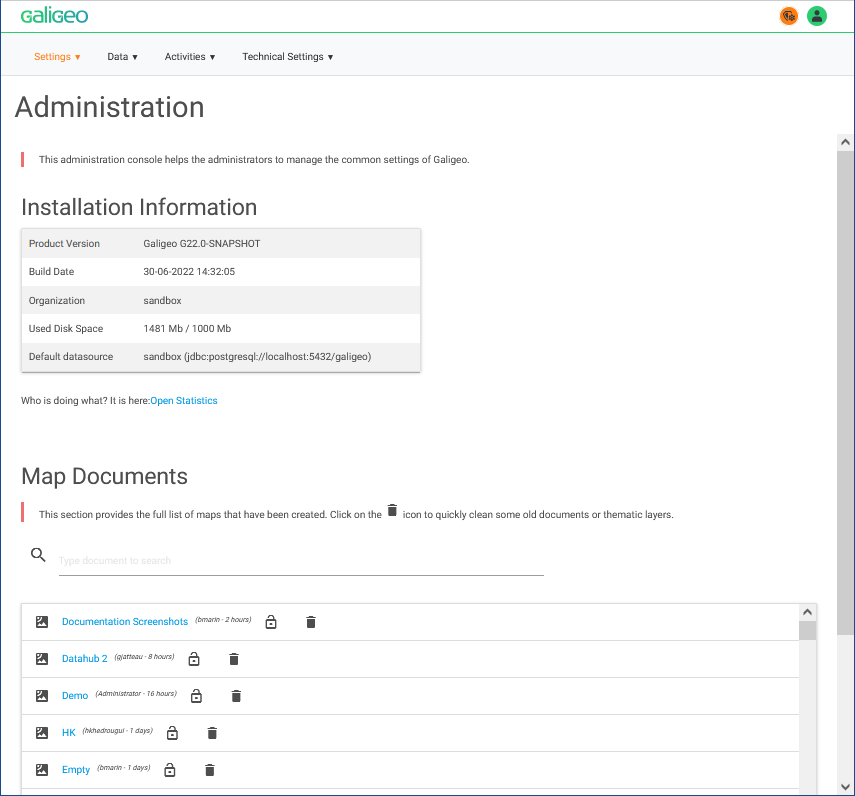
By clicking on the administration button, you will be directed to the Administration page.
Galigeo SaaS was conceived to work without any specific configuration. The Administration also allows the access to a large number of parameters.
The access to the Administration can also be done by using the admin button available from the map viewer.
The first solution needs an authentication. At the first use, the administrator is prompted to create a new password.
Who Will Use the Administration?
The Administration is a tool available to all the users that have the role of "Administrator". By default, the "Administrator" user has already this role, however it is possible to assign this role to several users.
All the administrators will have access to the administration button from the map viewer.
Administration Features
The Administration allows the management of the application global parameters. It also gives access to some tools that allow the fast troubleshooting of the product.
Here are the different functionalities:
- Administration page:
- Information on the actual installation
- Automatic troubleshooting
- Access to use statistics
- List of the maps and the layers associated, with the possibility to delete maps
- Activation/Deactivation of the DataHub. The DataHub allows direct access, from the application, to socioeconomic indicators (INSEE) on France
- Data/Catalog: see section Data Catalog
- Parameters/Users: see section Users & Roles
- Technical Settings/Datasource: see section SQL Query Builder
- Data/Files: This page allows the storing of online files that are accessible from a link. The online resources can be used in geo-links, or customized info-windows (the stored files are accessible only to the connected users).
- Technical Parameters/Proxy: Definition of the call URL of the application and definition of the proxy parameters used to access the Internet (see appendix "Proxy -- Internet Access from the Galigeo Server").
- Activities/Announcements: This tab is used to dispatch messages to all users through the application. Announcements are useful to indicate for example a maintenance shutdown or a data update.
- Settings/Theme: Here it is possible to choose to use the default colour theme of the viewer or setup another customized one.
- Technical Setting/LDAP: see appendix "LDAP - Connect Galigeo Portal to an LDAP directory"
- Settings/License: Gives information about the actual license, and offers the possibility to enter another one.
- Activities/Logs: The access to log files allows the troubleshooting of an issue. This page allows the download of logs in the format of zip-files, which is very useful in order to communicate with the Galigeo support team.
- Data/Export/Import of maps between Servers: This section allows the transport of maps between two environments, source and target. For instance from a development environment to a production environment. See section Export / Import Maps.
Export / Import Maps
The Export and Import pages allow administrators to transport map documents between two Galigeo environments (e.g. from a development server to a production server).
Export
The Export page displays the list of all map documents available on the server. The list is sorted by most recent modification date by default, and each column (name, author, date) is sortable. A search field allows filtering documents by name.
To export maps:
- Select one or more maps using the checkboxes
- Click the Export button
- A zip archive is downloaded containing the selected map configurations and associated datasets
The zip filename is {docId}.zip for a single document, or {yyyy_MM_dd}_Galigeo_export_{count}.zip for multiple documents.
Import
The Import page allows uploading a zip archive previously exported from another Galigeo environment.
To import maps:
- Click the upload area or drag and drop a zip file
- The server extracts the archive and imports all map documents
- The import result table shows each imported document with its name and CUID
- JoinMapper catalog entries are automatically resolved: if a join references a catalog entry that does not exist on the target server, the system searches for an entry with the same service name and updates the reference automatically. The Joins column indicates the status of each fix
REST API with API Key
The export and import endpoints can also be used programmatically via the REST API, without session-based authentication, by providing a valid API key as a query parameter.
Available endpoints:
GET /feature/admin/transport/docs?apiKey={key}— List all exportable documentsPOST /feature/admin/transport/export?apiKey={key}— Export selected documents (form parameter:selectedDocs=docId1,docId2)POST /feature/admin/transport/import?apiKey={key}— Import a zip archive (multipart form:files)
Example — export a map using curl:
# List available documents
curl "https://your-server/Galigeo/feature/admin/transport/docs?apiKey=YOUR_API_KEY"

# Export a single map
curl -X POST "https://your-server/Galigeo/feature/admin/transport/export?apiKey=YOUR_API_KEY" \
  -d "selectedDocs=my_map_id" \
  -o my_map_id.zip

# Import a zip archive
curl -X POST "https://your-server/Galigeo/feature/admin/transport/import?apiKey=YOUR_API_KEY" \
  -F "files=@my_map_id.zip"
The API key can be found on the administration home page, under the license information section.
Users & Roles
Roles allocation for the different users. Everybody using the application appears automatically in the list. It is possible to manually add login parameters in the list.
Available roles by default:
| Role | Description |
|---|---|
| Viewer | End users can visualize maps and use any features that won't modify the content of a map. They cannot do any modifications. It is the default profile. |
| Explorer | Similar to end users except they can import their own data to a map (Excel, CSV). These imported datasets cannot be seen by other users. |
| Creator | Authors create and modify the maps (create layers, set some reports, add motion maps, etc.). They can also tune any map using the settings page. The Creator has access to the catalog as well. |
| Designer | Specific to the territory design. Designers are similar to authors but can additionally create and manage territory projects. |
| Administrator | Administrators have access to everything. Only administrators can access the administration panel. |
The roles can be customized on a dedicated administration page (available from the Users tab). This page allows the adding/deleting/modifying of new roles.
It is also possible to create user groups (link also available from the users page). These groups allow facilitating the sharing of maps by defining the rules for a group.
To go further, please look at the appendix on advanced users and rights management.
Users and Rights Management
Available Rights
Application administrators are allowed to assign some role for each user. This is done from the page "Users" of the Administration. Each role is defined by a list of capabilities.
The table below lists all the available capabilities. Each capability is defined by a keyword.
| Name | Capability (technical name) | Description |
|---|---|---|
| Make dataset public | publicDataset | Allows to make a dataset public and available for all users |
| SQL Queries | configSQL | Gives access to the SQL query tools. One must also be author in order to have this right |
| Set custom infowindow | configInfoWindow | Allows the customizing of the info-window. One must also be author in order to have this right |
| Author | author | Authors can create maps, create new layers, can save the view for all users and have a full access to the settings page. They can also modify the properties for the public dataset |
| Import files | dataImport | Allows to import files or catalog layers to the map. Imported data is private by default |
| Access to the Catalog | mapManager | Allows the access to the catalog without the full admin rights |
| Create new map | createDocument | Gives access to the create map button from the portal. Notice: Galigeo Enterprise only |
| Territory Designer | territoryAuthor | Territory authors can create/edit/delete territory projects. Notice: Territory Management tool requires a separate license |
| Share maps | adminRights | This role allows the user to define the rights on a map (who can see the map? with what profile?) |
| Save the view | saveView | Allows to save the view (extent, filter selection, widget state). A view saved by an author will be saved for all users while the end user can save the view only for themselves |
| Edit Catalog Group | catalogGroup | Adds a feature to the catalog for defining group of layers. These groups can then be published as Feature Layers compliant with ArcGIS Server |
| Edit infowindow | store_editor | Users with that role will have access to the switch button to edit infowindows (when the infowindow is editable) |
| Administrator | admin | Access to the Administration as an administrator. Notice: cannot be used in a custom role and not available in "Manage Roles and Profiles" interface |
| File explorer | files | Allows access to a file explorer from the Administration |
| File editor | Files_editor | Users can add or delete files from the file explorer |
| Config Geocoding | configIso | Users can configure geocoding and isochrony parameters of a map |
By default, the application comes with some default roles:
| Role (old system) | Capabilities | Description |
|---|---|---|
| administrator | "admin", "author", "saveView", "dataImport", "publicDataset", "territoryAuthor", "mapManager", "adminRights", "files", "files_editor", "configInfoWindow", "configSQL", "configIso", "createDocument", "store_editor" | Administrators have full access to all features. |
| Creator (author/catalogAuthor) | "author", "saveView", "dataImport", "publicDataset", "mapManager", "adminRights", "files", "files_editor", "configInfoWindow", "configSQL", "configIso", "createDocument", "store_editor" | Creators can create maps, add layers and change settings. Creators can also access the catalog. |
| Territory Manager (designer) | "author", "saveView", "dataImport", "publicDataset", "territoryAuthor", "mapManager", "adminRights", "files", "files_editor", "configInfoWindow", "configSQL", "configIso", "createDocument", "store_editor" | Creators that can also create territory projects. |
| Explorer (intermediateUser) | "dataImport", "saveView", "files" | End users that are allowed to import private personal data. |
| Viewer (endUser) | "saveView" | End users cannot modify a map, however they can save a view for themselves. |
Custom Roles
To define new custom roles, go to Administration > Settings > Users, then click on "Click here to update the profiles".
Reset the Administrator Password
In case it has been forgotten, it is possible to reset the admin password to access the Administration.
$GALIGEO_HOME/config/people.jsonReplace the value "password" for user Administrator by
null.Example:
json
"Administrator" : {
      "orgId" : null,
      "userName" : "Administrator",
      "role" : "administrator",
      "password" : null,
      "lastConnect" : 1546869936453
    }
Proxy -- Internet Access from the Galigeo Server
Some functionalities need that the Galigeo server can access the Internet, e.g. drivetime, geocoding, isochrony...
This page allows defining proxy parameters that were set by the organization's network administrator. The parameters are:
- Proxy hostname: the name or the IP address of the proxy server
- Proxy Port: the proxy server port
- ssl (optional): defines, if so desired, the access to https sites, e.g. https://www.arcgis.com/. Practically, first tests have to be done before checking this option.
- Non Proxy Hosts:
- A list of hosts that should be reached directly, bypassing the company proxy. This is a list of patterns separated by '|'. The patterns may start or end with a '' for wildcards, e.g. *.my-company.com|localhost*
Which are the domains/URLs you have to declare in the company proxy?
According to the feature you want to use, you have to declare the following URLs in the company proxy.
| Feature | Domain to be reached through https (or http) | Examples of URLs |
|---|---|---|
| Datahub (license required) | datahub.galigeo.com | https://datahub.galigeo.com |
| Pedestrian flow (license required) | cloudapi.galigeo.com | https://cloudapi.galigeo.com |
| World Geocoder (license required) | batch.geocoder.ls.hereapi.com | https://batch.geocoder.ls.hereapi.com |
| France Geocoder | api-adresse.data.gouv.fr | https://api-adresse.data.gouv.fr |
| Isochrony/drivetime tool (license required) | arcgis.com | https://www.arcgis.com/... https://route.arcgis.com/arcgis/rest/services/... |
LDAP - Connect Galigeo Portal to an LDAP Directory
| Parameter | Description |
|---|---|
| Use LDAP authentication | Check to enable the LDAP authentication. If unchecked default Galigeo authentication is used. |
| Automatic add of LDAP Users | Check to enable automatic add of the LDAP users, as Galigeo End Users, on first connection to the portal. |
| LDAP URL | URL to access LDAP. Example: ldap://serveur_ldap:389 |
| LDAP Administrator Distinguished Name (DN) | Complete DN identifier for the LDAP administrator account. Example: cn=Manager,dc=corp,dc=galigeo,dc=com |
| LDAP Administrator Password | Password for the administrator account |
| LDAP Accounts Search Base DN | The database DN of the LDAP accounts having access to Galigeo Portal: - Only the users from that database can connect to Galigeo Portal. - The database is explored recursively. Example: ou=people,dc=corp,dc=galigeo,dc=com |
| LDAP Account Attribute | The LDAP attribute identifying the users for connecting to the Galigeo portal. This attribute should be a unique identifier for each user in the LDAP search database. Example: uid. If for the user John Doe we have uid=jdoe, then its Galigeo login will be jdoe. |
| LDAP Account Object Class | Specify a class of LDAP object that identifies the users (distinct from the classes identifying organizations or groups for example). Example: inetOrgPerson |
Basemaps Configuration
The application comes out of the box with a list of base maps that are already configured.
The administrator has the possibility to add WMTS base maps or the proper tiled base maps hosted on an ArcGIS Server or ArcGIS Online. The basemap list is defined in the <GALIGEO_HOME>/config/config.json configuration file.
In the configuration file, the base maps are defined in the table: "basemaps". Each base map, i.e. each object of the table, has the following attributes:
| Attribute | Description |
|---|---|
| Label | Unique name of the base map |
| Title | Title shown in the user interface |
| Description (optional) | Short description of the base map |
| type | Not defined: the URL refers to a tiled service using the OSM schema ({s}, {z}, {x}, {y}). arcgis_tiled: the URL refers to a tiled ArcGIS service. WMTS: WMTS service. Supports custom projections via the crs, resolutions and origin attributes. WMTS_SERVER: same as WMTS, but the GetCapabilities is fetched server-side. wms: WMS service. |
| Thumbnail | File name of the thumbnail using the JPG format. All thumbnails must be stored in the directory Galigeo/viewer/ui/img/basemaps |
| URL | By default: URL to the tiles schema. {s} means one of the available subdomains (used sequentially to help with browser parallel requests per domain limitation; subdomain values are specified in options; a, b or c by default, can be omitted), {z} -- zoom level, {x} and {y} -- tile coordinates. Example: http://{s}.somedomain.com/{foo}/{z}/{x}/{y}.png. ArcGIS Tiled Service: e.g. https://services.arcgisonline.com/arcgis/rest/services/World_Street_Map/MapServer. WMTS and WMTS_SERVER: The URL /wmts of the server, e.g.: //server.arcgisonline.com/ArcGIS/rest/services/Canvas/World_Light_Gray_Base/MapServer/wmts |
| Attribution (optional) | e.g. "(c) Mapbox" -- the string used by the attribution control, describes the layer data. |
| minZoom (optional) | Minimum zoom number. |
| maxZoom (optional) | Maximum zoom number. |
| Format | Tiles format (e.g.: jpg, image/png). Required for WMTS types. |
| tilematrixSet (WMTS) | Name of the tile matrix set to use. |
| layer (WMTS) | WMTS layer identifier. |
| style (WMTS) | WMTS style name (e.g. default). |
| template (WMTS) | Optional KVP template URL with placeholders {Style}, {TileMatrixSet}, {TileMatrix}, {TileRow}, {TileCol}. When provided, the request is built from this template instead of standard query parameters. |
| crs (WMTS, WMS) | Coordinate reference system (e.g. EPSG:4326). Allows using projections other than Web Mercator. |
| resolutions (WMTS) | Array of resolution values per zoom level. Required together with origin for custom projections. |
| origin (WMTS) | Tile origin as [x, y] array. Required together with resolutions for custom projections. |
| printCrs (WMTS, WMS) | CRS to use when printing the map. |
| scaleToResolutionFactor (WMTS) | Multiplication factor to calculate the resolution of a matrix. Default: 3571.428571. Resolution = scaleToResolutionFactor × scaleFactor. |
| layers (WMS) | Comma-separated list of WMS layer names. |
| default | true if the layer is displayed by default. false otherwise. Only one basemap can be defaulted to true. |
| thirdDimension | false by default, true to activate the 3D mode on the buildings (OSMBuildings). |
Example: Open Street Map basemap
{
"label": "osm",
"Title": "OpenStreetMap",
"Description": "This map service displays OpenStreetMap features with a grey theme ideal for thematic display.",
"Thumbnail": "osm_mapnik.jpg",
"url": "//{s}.tile.openstreetmap.org/{z}/{x}/{y}.png",
"attribution": "© <a href='http://osm.org/copyright'>OpenStreetMap</a> contributors",
"minZoom": 1,
"maxZoom": 19,
"format": "jpg",
"default": false
}
Example: Custom ArcGIS tiled basemap
{
    "label": "Custom Basemap",
    "Title": "Custom Basemap",
    "Description": "...",
    "type": "arcgis_tiled",
    "Thumbnail": "US.jpg",
    "url": "http://<ArcGIS Server URL>/arcgis/rest/services/MapServer",
    "attribution": "...",
    "minZoom": 2,
    "maxZoom": 4,
    "default": false
}
Example: WMTS basemap
{
    "label": "WMTS",
    "Title": "WMTS Light Gray",
    "Description": "ArcGIS Light Gray Canvas via WMTS",
    "Thumbnail": "grey.jpg",
    "url": "//server.arcgisonline.com/ArcGIS/rest/services/Canvas/World_Light_Gray_Base/MapServer/wmts",
    "attribution": "Esri, HERE, Garmin",
    "type": "WMTS",
    "layer": "Canvas_World_Light_Gray_Base",
    "tilematrixSet": "default028mm",
    "style": "default",
    "format": "image/jpeg",
    "default": false
}
Example: WMTS basemap with custom projection
When the WMTS service uses a projection other than Web Mercator, provide crs, resolutions and origin:
{
    "label": "ign_plan",
    "Title": "IGN Plan v2",
    "Thumbnail": "ign_plan.png",
    "type": "WMTS",
    "url": "https://data.geopf.fr/wmts",
    "layer": "GEOGRAPHICALGRIDSYSTEMS.PLANIGNV2",
    "tilematrixSet": "LAMB93",
    "style": "normal",
    "format": "image/png",
    "crs": "EPSG:2154",
    "origin": [-357823.2365, 7230727.3772],
    "resolutions": [104579.22454989408, 52277.53235379051, 26135.487078595408, 13066.891381800004, 6533.228604113456, 3266.5595244626675, 1633.2660045974187, 816.6295549860224, 408.31391467683596, 204.15674151090204, 102.07831678324082, 51.03916433905349, 25.519554803052897, 12.759777367788631, 6.379888684867305, 3.18994434243365, 1.5949721712168252, 0.7974860856084126, 0.39874304280420634, 0.19937152140210317],
    "printCrs": "EPSG:2154",
    "default": false
}
Example: WMS basemap
{
    "label": "basemap",
    "Title": "Put a title here",
    "Description": "Put a description here",
    "Thumbnail": "Default-Basemap.png",
    "attribution": "Put an attribution here",
    "type": "wms",
    "layers": "BS.WE.Wohnblockseite,BS.WE.Wohnblock",
    "crs": "EPSG:4326",
    "format": "image/png",
    "url": "https://wms.geo.bs.ch/wmsBS?SERVICE=WMS&VERSION=1.1.1",
    "default": false
}
Remarks concerning the supported basemaps
- The versions 10.2 and 10.3 of ArcGIS Server are supported for the tiled services.
- WMTS basemaps use Web Mercator by default. To use a different projection, provide the
crs,resolutionsandoriginattributes. - For the tiled ArcGIS services, the list of supported projections is available in the following file:
Galigeo/viewer/epsg.json - WMS basemaps are queried into several tiles when displayed on the map. When the service is dynamic with labels, the labels might be displayed several times on the map. The solution is to cache the service.